
The Copier Nobody Was Trained On
May 5th, 2027
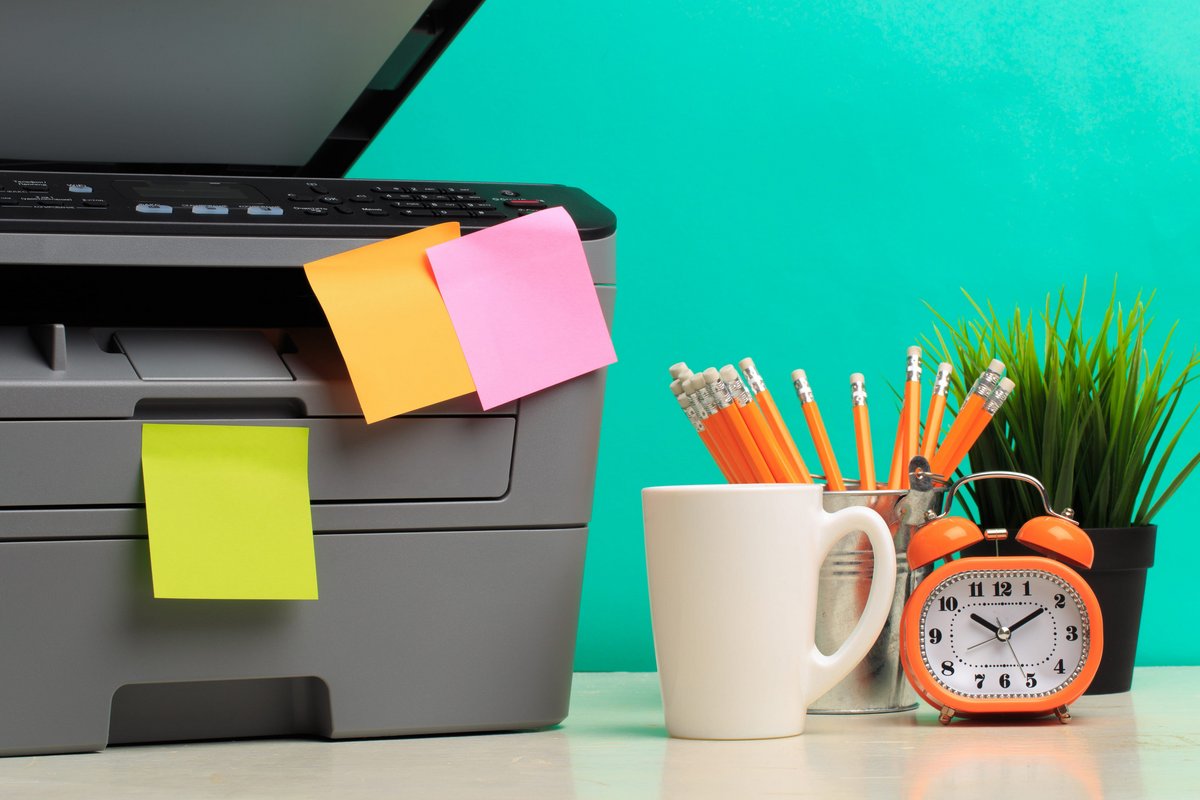
The copier in the hallway can scan to email, staple, hole-punch, sort, print two-sided, store documents in folders, and send a fax if anyone still needs one. Most of the office uses it to make a copy and occasionally print a PDF.
That is not a criticism of the staff. It is what happens when a machine arrives, gets plugged in, and everyone is shown the power button. The features are there, but the knowledge is not.
An Expensive Machine Doing a Cheap Job
A multifunction copier is one of the more expensive pieces of equipment in a small office. The lease, the service contract, the toner, and the paper all add up. If the machine is only used for basic copying, the office is paying for capability it never uses.
The waste is not only financial. Staff walk to the copier to make a copy, then walk back to their desk to scan the copy, then email it. They print a document, sign it, scan it, and email it back, when a digital signature would do. They print a thirty-page report for a meeting that only needed the summary.
Small habits, repeated across a team, add up to hours and dollars that nobody sees in one place.
The Features People Actually Need
You do not need to teach every feature. Teach the ones that solve the problems the office already has.
Scan to Email
Scanning to your own email address is faster than scanning to a shared folder nobody checks. Show people how to enter their address, choose PDF, and send. Show them how to scan two-sided and multiple pages into one file.
Secure Print
Secure print holds a job until the person is standing at the machine. It prevents confidential pages from sitting in the output tray and reduces the stack of abandoned printouts. Show people how to release a job and how to delete one they no longer need.
Two-Sided Copying
Duplex should be the default, but people should know where the setting is when they need single-sided pages. A quick demonstration is usually enough.
Staple and Sort
For offices that assemble packets, the finisher can save a surprising amount of time. Show the stapling options and the correct orientation for the paper tray.
Address Book and Shortcuts
Save the frequently used scan destinations and copy settings as shortcuts. A shortcut with a clear name is easier to remember than a sequence of menu screens.
Basic Troubleshooting
Show people how to clear a simple jam without tearing the paper, how to identify the tray that needs paper, and what information to give the service desk when a real error appears.
How to Run a Training That Sticks
A long manual will not work. Neither will a session in a conference room with no machine. The training should happen at the copier, with the actual documents people use.
- Keep it short. Fifteen to twenty minutes is enough for the core features.
- Use their work. Have each person scan a real document and send it to their own email.
- Do it in small groups. Two or three people at a time, so everyone gets a turn.
- Leave a reference. A one-page guide taped inside the supply cabinet or posted near the machine.
- Repeat for new hires. Add the copier to the onboarding checklist, not just the first week's tour.
If the office has a person who already knows the machine, make that person the go-to for questions. A coworker is easier to ask than a vendor, and the questions are usually small.
Ask the Provider for Help
Most copier providers will train the office as part of an installation or service agreement. Ask for a session after the machine is set up, and ask for it again when a new employee joins or when the office takes on a new workflow.
If the current provider will not help, that is useful information. A machine is only as good as the support behind it.
The Machine Is Not the Whole Answer
Training is not about turning everyone into a copier expert. It is about removing the small friction that makes people avoid the machine or use it badly. A staff that knows how to scan, print securely, and clear a jam is a staff that wastes less time and creates fewer service calls.
Complete Document Solutions helps Southern California offices with multifunction printers and copiers, printer and copier support, and secure printing. If the copier is capable of more than the office knows, contact us and we can set up a training session that fits the way your team works.